
Bulk product descriptions: draft your whole store in one go
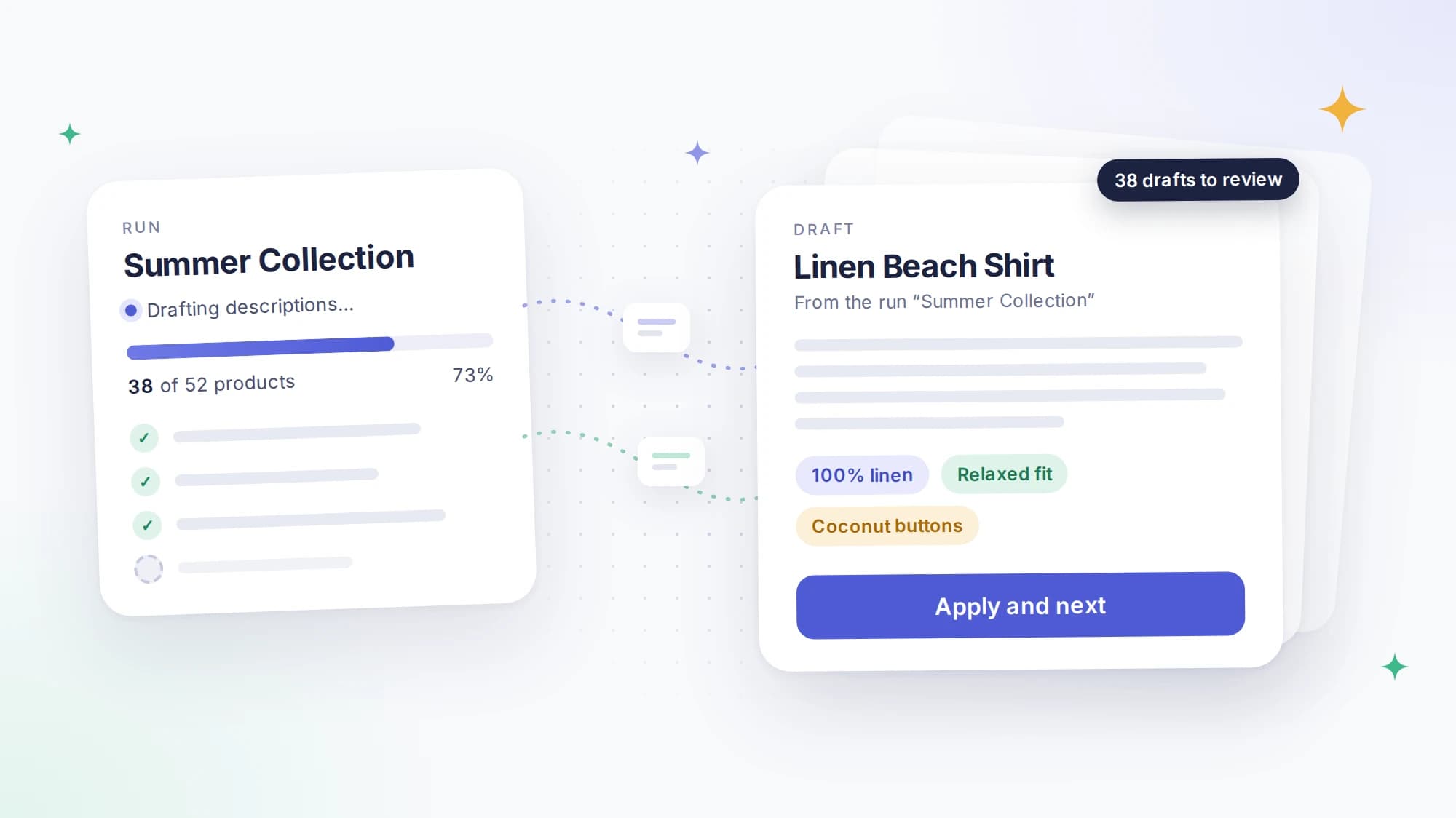
Writing one great product description is easy enough. Writing 400 of them is a different story. CopyMeld can write bulk product descriptions: hand it a whole collection, or your whole store, and it'll draft a description for every product in it.
Starting a run
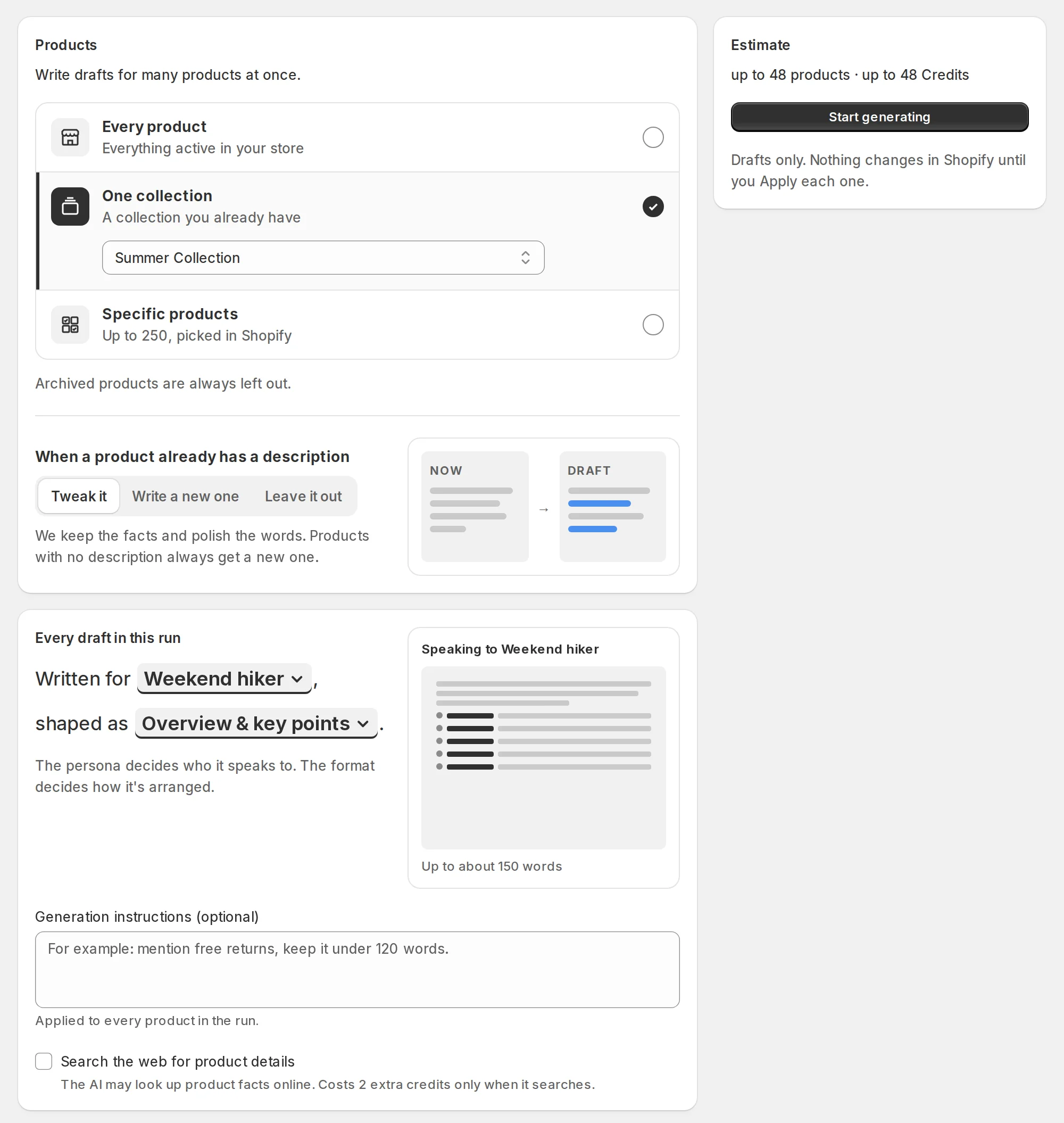
On the Generate page, choose which products you want descriptions for: your whole store, one collection, or specific products you pick yourself. If you only want to fill the gaps, you can tell it to leave out products that already have a description.
Then pick a customer persona and a description format, the same way you would for a single product. You can add a note for the whole batch too, like "mention free returns" or "keep it under 120 words". If some products already have a description, you choose whether CopyMeld tweaks what's there or writes a new one from scratch.
Before you start, you'll see an estimate of how many products it'll draft and how many Credits that'll take. Then click Start generating and CopyMeld gets to work in the background. We call this a run. You don't need to keep the page open, and you can check on it any time from Runs.
How many credits does it use? The same as one at a time: 1 credit per product. Turn on web search and it's 2 more for each product where CopyMeld actually searches. If you run low, the run pauses and waits for you, so you won't get a surprise bill. You can pause or cancel it yourself too, and any drafts it's already written are kept.
Reviewing your drafts
A run only ever writes drafts. Your live descriptions stay exactly as they are until you apply each new one.

Your drafts appear in Drafts as soon as they're written, so you can start reviewing while the run is still going. CopyMeld's home page shows you how many are waiting.
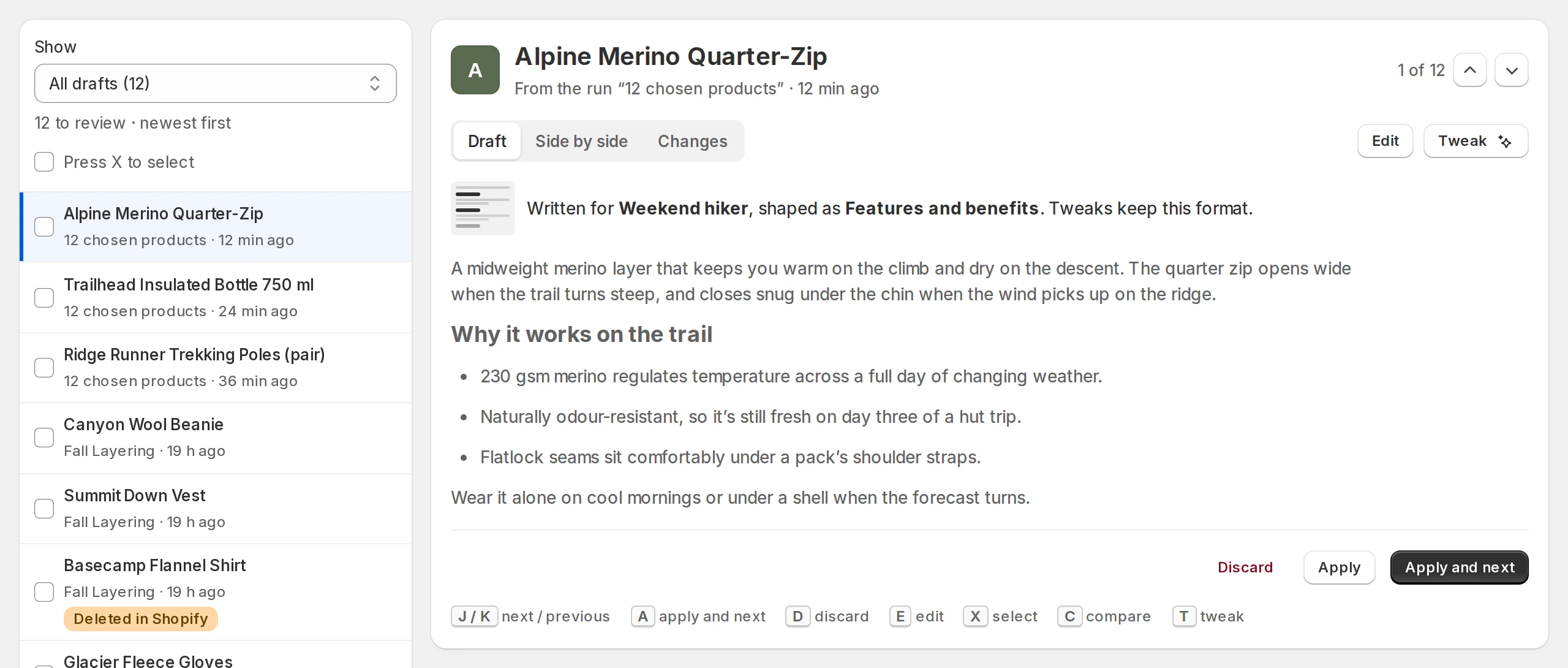
We built it to get you through a big pile quickly. Read a draft, click Apply and next, and the next one opens straight away. If a product already had a description, switch to Changes to see exactly what the draft adds and takes away. If one isn't quite right, tweak it in plain English or edit it yourself. If you've read a few and you're happy, select them all and apply them in one click.
If you like using your keyboard, there are shortcuts for nearly everything: J and K to move between drafts, A to apply, D to discard, E to edit and T to tweak. Discarded one by mistake? You've got a few seconds to undo it.
Give each draft a quick read before it goes live. AI gets things wrong now and then, and product details are where a mistake matters most.
When bulk descriptions save the most time
Say you've just imported 200 products from a supplier, and every one came through with a one-line description, or none at all. That's days of writing. Start a run on that collection, leave out anything that's already got a description, and come back to a pile of drafts in your brand voice, ready to review over a coffee.
A run is worth starting when you:
- are setting up a new store and need descriptions for everything
- add a new collection or a big batch of stock
- want to refresh old descriptions so they match your brand voice
- have a few products with no description that you keep meaning to get to
Start with one collection
Next time you open CopyMeld, head to Generate and start a run on one collection. A small one is a great way to see what it can do before you try the whole store.
Tell us how your first run goes. Questions, feature ideas, or a run that saved you a weekend: send them our way, and a real person will reply.